
There’s exciting news for the WordPress community. WordPress 7.0 Beta 1 has been released for testing, introducing a range of new features that could significantly impact how teams build, design, and manage websites.
As with any beta release, this version is intended for testing and development purposes only and should not be installed on live or mission-critical sites. Instead, it’s best explored in a staging or local environment.
Here’s a closer look at what’s changing, why it matters for website owners and developers, and what to expect in the upcoming full release.
Our First Impressions of WordPress 7.0
At TorontoDigits, we’re genuinely excited about the release of WordPress 7.0.
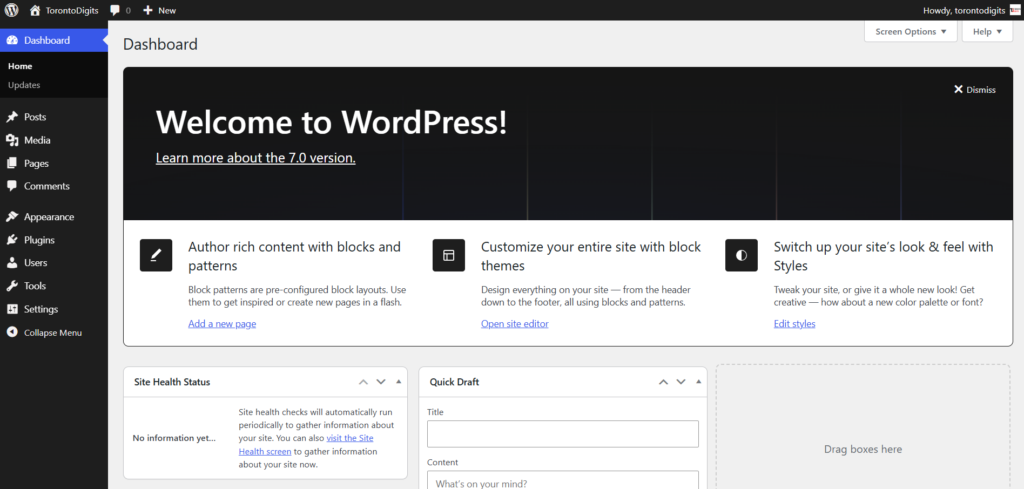
We’ve been testing the beta version in a controlled environment, and the experience has been impressive. From real-time collaboration to smarter design tools and improved performance, this update feels like a meaningful step forward — not just a routine version upgrade.
Now, let’s take a closer look at the major highlights in WordPress 7.0.
Work Together in Real Time — Finally
If you’ve ever collaborated with a client or teammate inside WordPress, you know how messy it can get.
Someone updates the hero section.
Someone else edits the same block.
Suddenly, content is overwritten — and no one knows what changed.
WordPress 7.0 fixes that.
You can now edit the same post or page at the same time, just like working in Google Docs — but directly inside the WordPress editor.
Multiple users can:
- See changes happening live
- Work simultaneously without locking each other out
- Continue editing offline and sync automatically when reconnected
For agencies, content teams, and freelancers, this dramatically simplifies the workflow.
Built-In Notes Inside the Editor
Collaboration doesn’t stop at live editing.
WordPress 7.0 introduces a built-in Notes system inside the block editor.
You can leave rich-text notes directly on specific blocks — almost like adding digital sticky notes to your design.
Need client approval on a section? Leave a note.
Want to remind yourself to update a CTA later? Add a quick note using a keyboard shortcut.
Instead of juggling emails, screenshots, and external tools, your entire feedback and revision process can now live inside WordPress.
It’s a small change that makes a big difference in how teams build and review content.
The Admin Area Gets a Fresh, Modern Feel
WordPress 7.0 doesn’t just add new features — it also makes the admin dashboard feel cleaner and more consistent.
With an improved design system and updated UI components, the backend experience is now more polished across different screens and plugins. In simple terms, things look more unified, feel smoother, and are easier to navigate.
It’s not a dramatic redesign — but it’s a noticeable refinement that makes everyday work inside WordPress more enjoyable.
Font Management Finally Has Its Own Dashboard
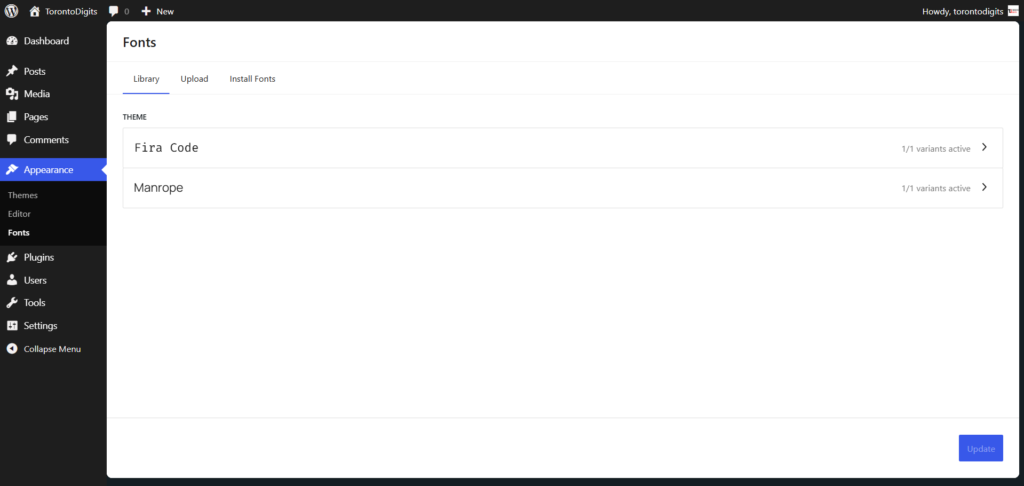
Before WordPress 7.0, managing custom fonts often meant installing extra plugins or manually adding CSS.
Now, there’s a dedicated Font Library page built directly into the dashboard — and it works with block, classic, and hybrid themes.
You can:
- Upload custom fonts
- Preview them instantly
- Apply them to your site
- Manage everything in one place
No code. No extra plugin. No messy CDN links.
For designers, agencies, and business owners managing multiple websites, this is a major time-saver. Your brand fonts now live neatly inside WordPress itself.
Revisions That Actually Show What Changed
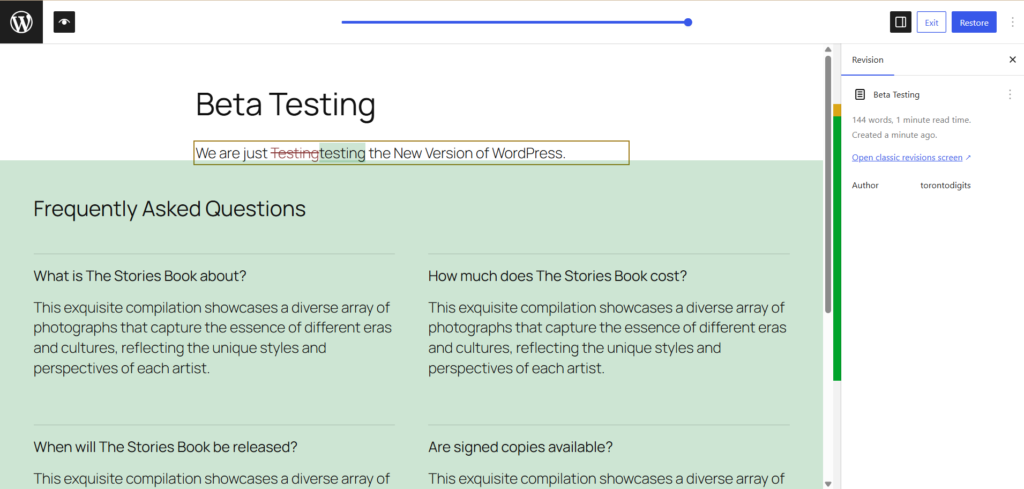
Revisions have also become much more practical.
Previously, comparing revisions meant jumping to a separate screen and reading text-based differences — which wasn’t always easy to interpret.
Now, WordPress 7.0 shows visual revision differences directly inside the block editor.
You can clearly see:
- What was added
- What was removed
- What was modified
All highlighted visually within the layout.
For content teams, editors, and client review processes, this makes tracking changes faster, clearer, and far less frustrating.
Smoother Navigation Across the Admin
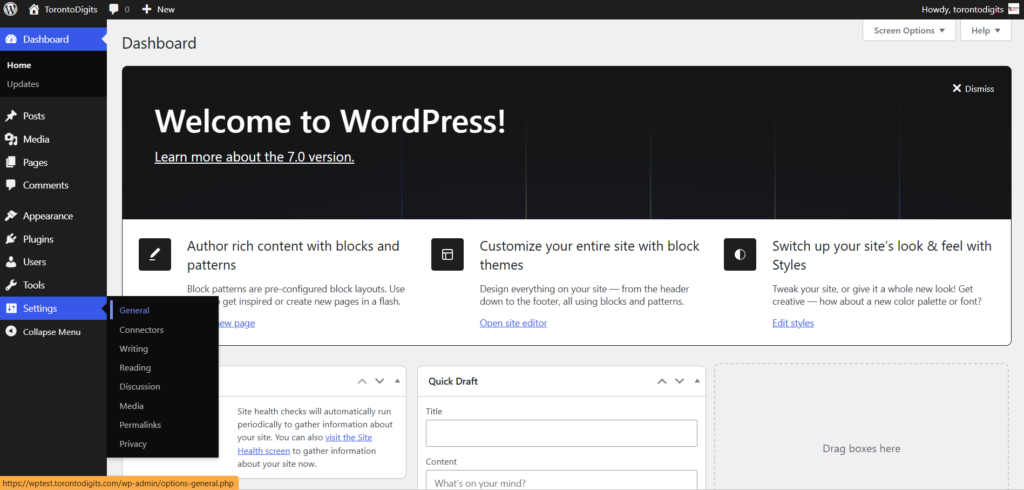
Moving around the WordPress dashboard now feels faster and more fluid.
WordPress 7.0 introduces smooth transitions between admin pages, so instead of abrupt reloads, screens glide from one to another. It gives the backend a more modern, app-like feel — less like a traditional website and more like a polished software experience.
It’s a subtle upgrade, but one you’ll notice every day.
Quick Edit in the Site Editor Is Finally Reliable
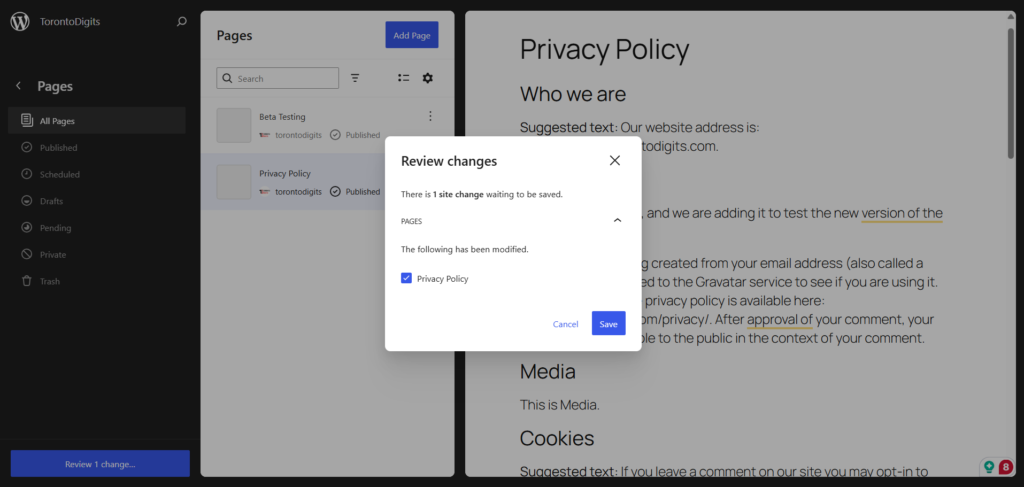
If you’ve used Quick Edit inside the Site Editor before, you may have experienced glitches or inconsistent behavior.
In WordPress 7.0, Quick Edit has been stabilized.
You can now confidently update:
- Page titles
- URLs (slugs)
- Status (draft, published, etc.)
- Other key settings
All without opening the full editor.
Even better, Quick Edit now shows the number of notes attached to each page or template. This connects directly to the new Notes system, allowing teams to instantly see if feedback or comments exist before opening a page.
For larger websites with multiple editors, this small improvement reduces unnecessary clicks and back-and-forth communication.
Pattern Editing Feels More Practical
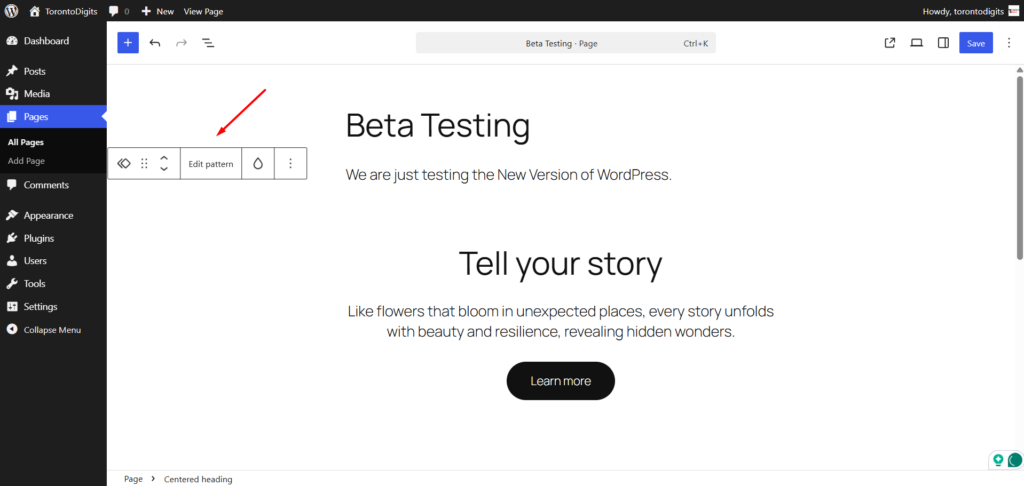
Patterns — reusable design sections — have always been powerful, but editing them sometimes felt disconnected from the actual page layout.
WordPress 7.0 changes that.
You can now edit patterns directly in context, meaning you see your changes live on the actual page while you’re working.
This applies to:
- Contextual patterns (used in specific areas, like a hero section)
- Global or “symbol” patterns (used across multiple pages)
If you update a call-to-action pattern that appears on 20 pages, you can edit it once and instantly update it everywhere — while still seeing how it looks in real time.
It makes design updates more intuitive and much less guesswork.
Responsive Editing Mode: Design for Every Device in One Place
You’ve probably experienced this:
Your desktop layout looks perfect.
Then you switch to mobile preview — and things look cluttered or misaligned.
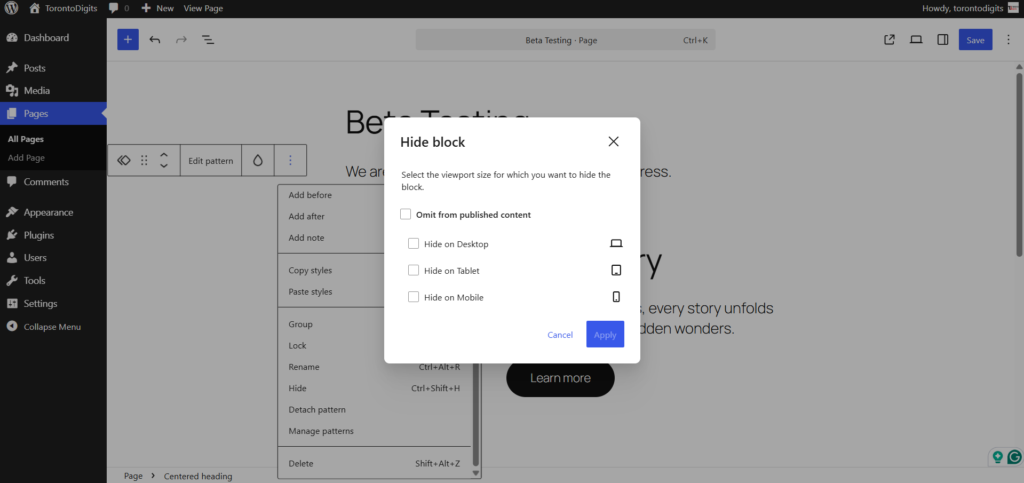
WordPress 7.0 introduces Responsive Editing Mode to solve this.
You can now:
- Show or hide specific blocks based on the device
- Preview desktop, tablet, and mobile layouts
- Make adjustments directly inside the editor
No custom CSS required.
There’s also a visibility notice that clearly shows when a block is hidden on certain screen sizes. This prevents confusion — especially when clients ask, “Why isn’t this section showing?”
Even better, hidden blocks have a simplified toolbar to prevent accidental edits to content that visitors can’t see.
The result? Building responsive layouts is more controlled, transparent, and far easier to manage.
The Block Editor Just Got Much More Powerful
This is where WordPress 7.0 becomes especially exciting for designers and content creators.
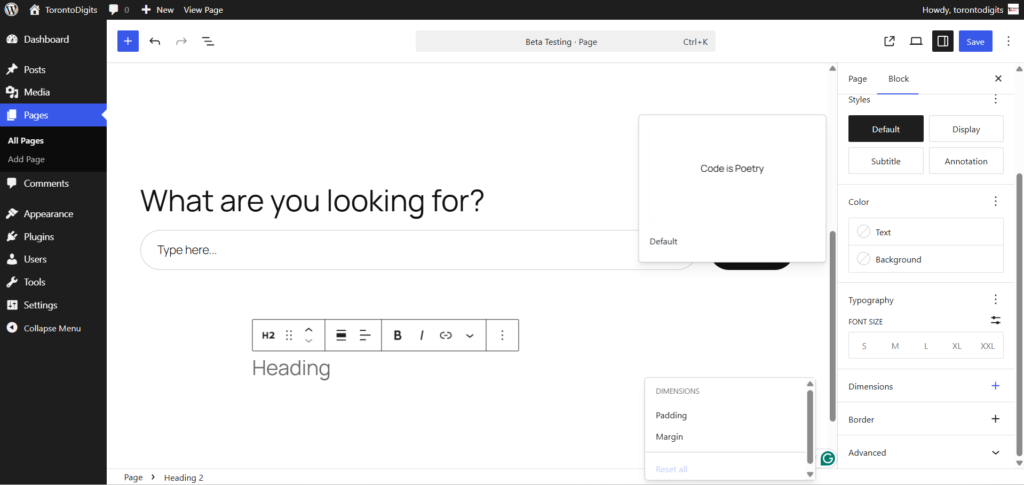
The Block Editor now includes design tools that previously required custom CSS, extra plugins, or page builders.
Here’s what’s new:
- Text indent and column controls – Create more structured, editorial-style layouts for blog posts and landing pages.
- Aspect ratio controls for wide and full-width images – No more awkwardly stretched images across different screen sizes.
- Width, height, and dimension presets – Set consistent sizing rules for blocks without repeating the same adjustments over and over.
- Responsive Editing Mode – Show or hide specific blocks depending on device size, with built-in visual previews.
In short, the native WordPress editor is catching up to advanced page builders — while keeping everything cleanly inside Core.
Breadcrumbs Block: Better Navigation Without Extra Plugins
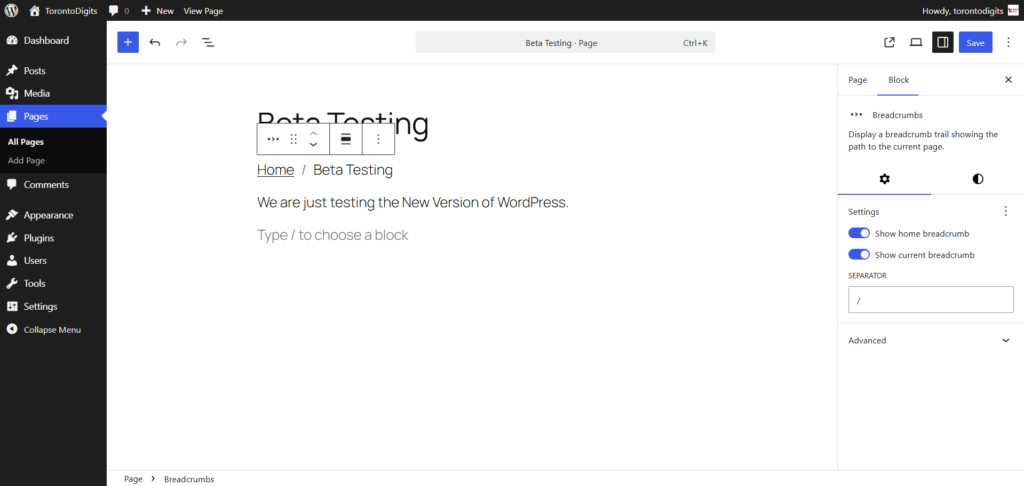
Breadcrumbs help visitors understand where they are on your site. They’re also great for SEO.
Previously, adding breadcrumbs meant installing a plugin or writing custom code.
Now, WordPress 7.0 includes a built-in Breadcrumbs block.
You can:
- Add breadcrumbs to any page or template
- Customize separators and styling
- Use it directly inside the Site Editor
For blogs, WooCommerce stores, and large websites with multiple page levels, this makes navigation clearer and easier to manage — without relying on third-party tools.
Heading Block: Faster, Cleaner Content Structure
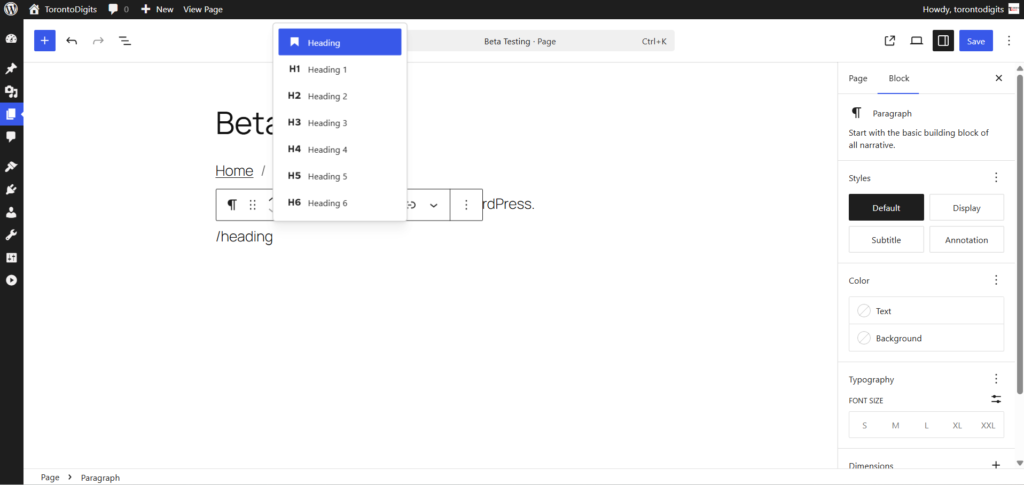
Before WordPress 7.0, you had to insert a generic Heading block and then choose the level (H1–H6) from a dropdown.
It was simple — but repetitive.
Now, each heading level is available as its own block variation. You can choose H1, H2, H3, and so on directly from the block inserter before you start typing.
This small change makes a big difference.
It encourages better content structure, faster editing, and more SEO-friendly pages from the beginning — especially for writers who care about heading hierarchy.
Cover Block: Add Video Backgrounds Without Workarounds
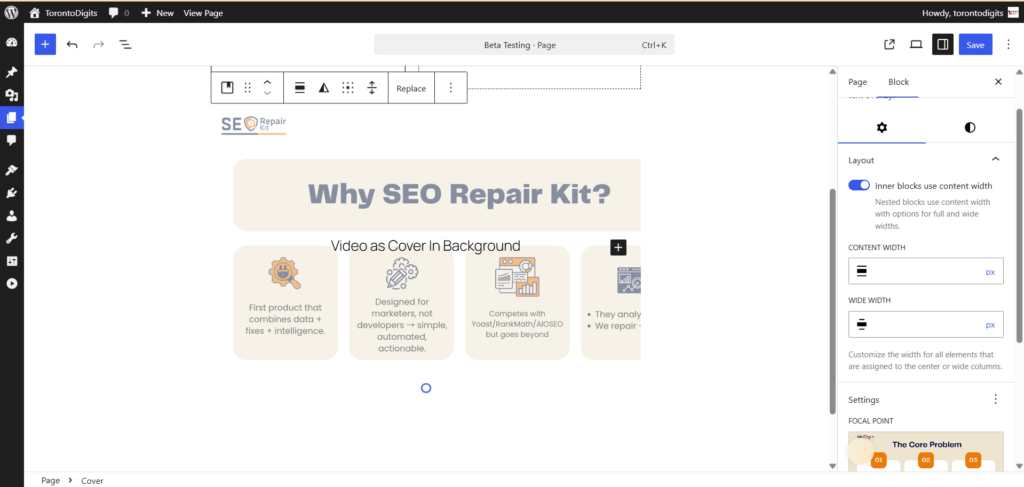
Want a full-width video background for your hero section?
Previously, that required custom HTML, plugins, or CSS tricks.
With WordPress 7.0, you can now embed videos directly as backgrounds inside the Cover block natively.
Just add your video, and it plays behind your content automatically.
You can also use the Focal Point picker to control exactly how the video or poster image is positioned. This keeps your design intentional and polished.
Perfect for:
- Homepage hero sections
- Promotional banners
- Landing pages
And no extra tools required.
More Powerful Upgrades Worth Noting
Navigation Block Improvements
You can now create fully customized menu overlays — including mobile-specific versions — and save them as reusable template parts. Design once, reuse everywhere.
Icons Block
Insert and style icons anywhere on your page using a dedicated block. No icon plugin. No custom code.
Gallery Block Lightbox
Image galleries now open in a built-in lightbox when clicked. Visitors get a clean, focused image view automatically.
Dynamic URLs in Navigation
Navigation links can now use dynamic URLs that adapt to context — like linking to the current user’s profile or filtered archive pages — instead of manually hardcoding links each time.
Overall, WordPress 7.0 doesn’t just add new blocks.
It makes the editor more capable, more flexible, and far closer to a complete visual design system — all without depending on third-party page builders.
Developer Enhancements in WordPress 7.0
WordPress 7.0 brings meaningful backend improvements that make building modern, scalable solutions easier and more flexible.
Client Side Abilities API
A standardized framework for registering and running browser-based “abilities,” enabling richer and more dynamic user experiences directly in the browser.
PHP-Only Block Registration
Developers can now generate and register blocks server-side using PHP — with auto-generated inspector controls — simplifying custom block development.
DataForm & DataViews Improvements
Enhanced structure and flexibility for managing data-driven interfaces, including:
- New layout options for better UI organization
- Built-in validation support across controls
- A foundation for future third-party integrations
Updated CodeMirror (v5.65.40)
The updated CodeMirror library improves extensibility, stability, and compatibility — offering more flexibility for advanced editing experiences.
How to test the beta
You can test WordPress 7.0 Beta 1 by:
- Installing the WordPress Beta Tester plugin
- Downloading the Beta ZIP file
- Using WP-CLI
- Try it instantly in your browser with WordPress Playground
Remember: don’t install it on a live site.
What this beta shows
This beta highlights three important shifts in WordPress:
- Real-time collaboration is now part of the core
- WordPress now includes the technical foundation for AI
- Design and responsive tools continue to improve
The beta is still for testing, so some features may change before the final release.
But it gives a clear sense of where WordPress is heading next.
Ready to upgrade to WordPress 7.0 the right way?
TorontoDigits helps you implement the latest features — from AI integrations to real-time collaboration — with precision and performance in mind.
Let’s future-proof your WordPress website today.