
Contributing to WordPress Core is an essential part of the WordPress community. However, many beginners feel stuck because they think a complex local development setup is required. The good news is that this is no longer the case. With tools like WordPress Playground, you can start testing Core tickets directly in your browser without any installation.
This guide is based on my article: Abdullah Ramzan on Contributing to WordPress and is designed to give you a clear and simple path to begin contributing to WordPress Core.
In this guide, you will learn the complete process for getting started, including how contributions work, identifying and reporting bugs, testing existing patches, and even creating your own fixes. You will also gain insight into how patches are created and submitted, and how to upload them to WordPress Core Trac for review.
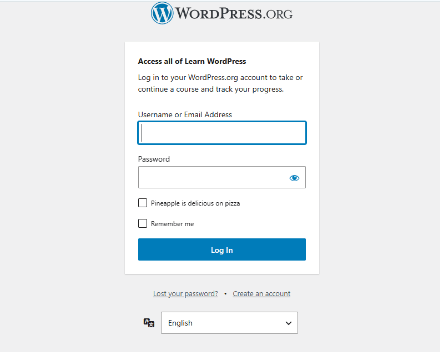
Step 1: Create a WordPress.org Account
Before contributing, you need a WordPress.org account. This allows you to comment on tickets, participate in discussions, and submit feedback. Official guide:Creating a WordPress.org Account
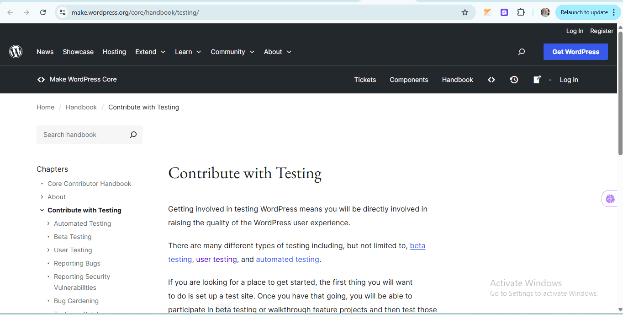
Step 2: Get Started with WordPress Core
Learn how WordPress Core contributions and testing work. The official testing handbook explains:
- How to test issues
- What feedback is useful
- How to write test reports
Official guide: WordPress Core Testing Handbook
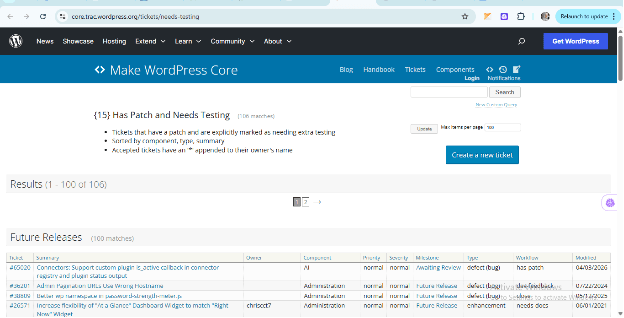
Step 3: Locate WordPress Core Tickets
Navigate to the WordPress Core ticket system: Trac
Filter tickets labeled “Needs Testing”: Patches Needing Testing
Step 4: Select a Ticket with a Patch
Pick a ticket that has a patch associated with it. Modern patches are linked via GitHub pull requests. Example: PR #11389
Review the ticket and patch description to understand the changes.
Step 5: Test Using WordPress Playground
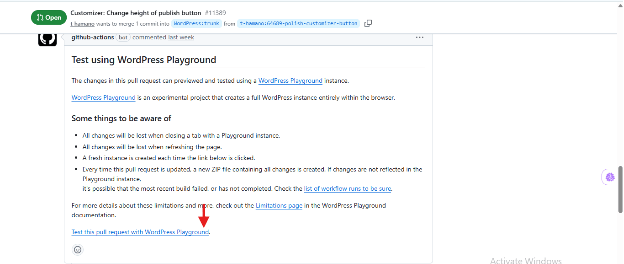
At the bottom of the PR or ticket description, look for the “Test with WordPress Playground” option.
WordPress Playground allows you to:
- Spin up a fresh WordPress environment in your browser
- Apply the patch automatically
- Test the issue without any local setup
Step 6: Understand the Issue Clearly
Before testing, make sure you know:
- The problem being reported
- Where it occurs in WordPress
- The expected behavior
Common issues may involve:
- UI alignment problems
- Font or spacing inconsistencies
- Button behavior anomalies
Step 7: Reproduce the Issue in WordPress Playground
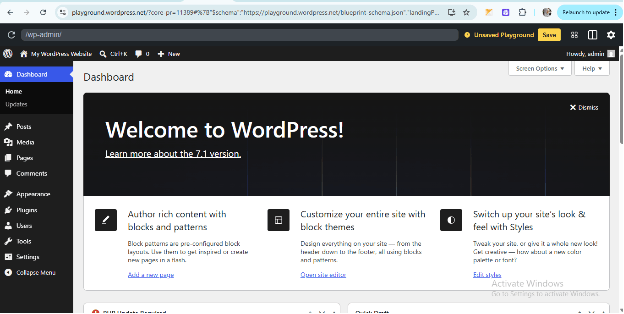
- Open WordPress Playground: WordPress Playground
- Navigate to the relevant section:
- Posts → editor issues
- Media → upload issues
- Appearance → UI/customizer issues
- Follow the reproduction steps in the ticket
- Verify whether the issue exists
Step 8: Review the Patch (Limitations)
WordPress Playground has some limitations:
- Cannot upload or apply .patch files directly
- Core file editing is restricted
What you can do:
- Confirm whether the issue exists in the current version
- Check if the issue is fixed in recent updates
- Review patch discussion on Trac or GitHub
Step 9: Verify Results
Check:
- Was the issue reproduced successfully?
- Is the issue resolved or still present?
- Does the UI behave as expected?
- Any JavaScript console errors?
Tip: Right-click → Inspect → Console to check for warnings or errors.
Step 10: Test Responsiveness
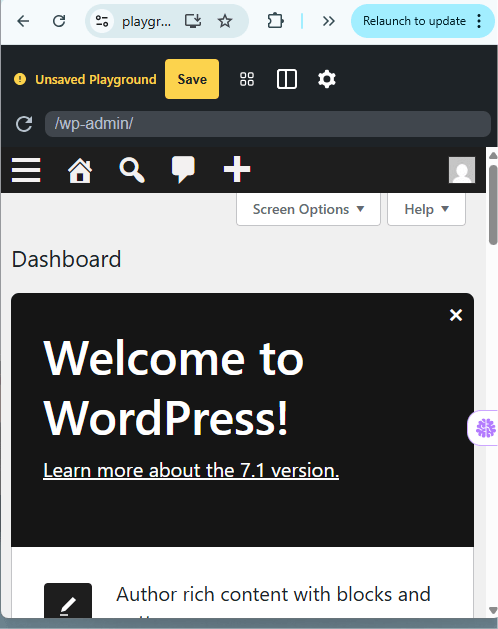
- Open developer tools in your browser
- Switch between mobile and desktop views
- Compare the layout and UI behavior
Pay attention to:
- Layout responsiveness
- Font readability
- Button functionality
Step 11: Provide Feedback
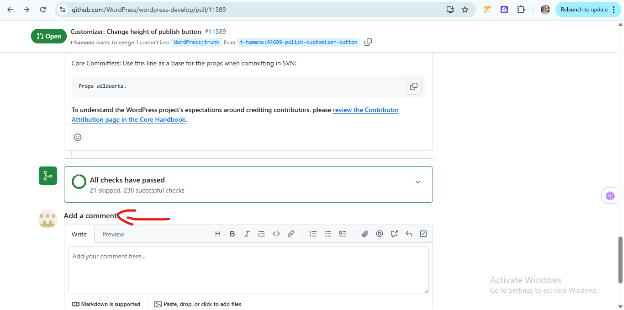
After testing, return to the ticket or PR and submit your feedback. Example:
Tested using WordPress Playground
Steps:
- Followed ticket instructions
- Reproduced issue in WordPress Playground
Results: - Issue successfully reproduced
- Tested on both mobile and desktop views
Conclusion: - Issue still exists / Issue resolved
Provide constructive and detailed feedback to the WordPress Open Source Team.
When to Use WordPress Playground
Best suited for:
- UI/UX testing
- Beginner contributions
- Quick verification of issues
Not suitable for:
- Backend/server-side bugs
- Database-related issues
- Applying or testing full code patches
Limitations
- Temporary environment (data not saved)
- No patch uploading or file editing
- Limited access to core files
- Some features may not work fully
Pro Tips
- Read and understand the ticket before testing
- Start with simple tickets to build confidence
- Take screenshots to document findings
- Test responsiveness on multiple screen sizes
- Provide clear, concise, and constructive feedback
Conclusion
You don’t need a local setup to start contributing to WordPress Core. Using WordPress Playground with Trac and GitHub, beginners can:
- Find relevant tickets
- Test issues in a live environment
- Provide valuable feedback to the community
As your experience grows, you can progress to advanced contributions like patch testing and submitting pull requests.