
Testing patches is an essential part of contributing to WordPress Core. However, traditional workflows that rely on Git, command-line tools, and manual patching can be difficult for new contributors.
The WP Core Git Sync plugin provides a simplified approach by enabling patch application and testing directly from GitHub within the WordPress admin dashboard.
This guide outlines a step-by-step process for testing WordPress Core patches in a local development environment.
What is WP Core Git Sync?
WP Core Git Sync is a WordPress plugin designed for core contributors, testers, and even non-technical users. It enables you to:
- Apply patches directly from GitHub pull requests
- Track core changes in your local environment
- Revert modifications easily
- Test patches without using command-line tools
Note: This plugin is intended for local, development, or staging environments only. Do not use it on production sites.
Prerequisites
Before you begin, make sure you have:
- A local WordPress setup (e.g., Laragon, LocalWP)
- Administrator access to the WordPress dashboard
- Basic understanding of WordPress file structure
Step 1: Download the Plugin ZIP from GitHub
Open the official Link :
github.com/TorontoDigits/wp-core-git-sync
- Click the green Code button
- Select Download ZIP
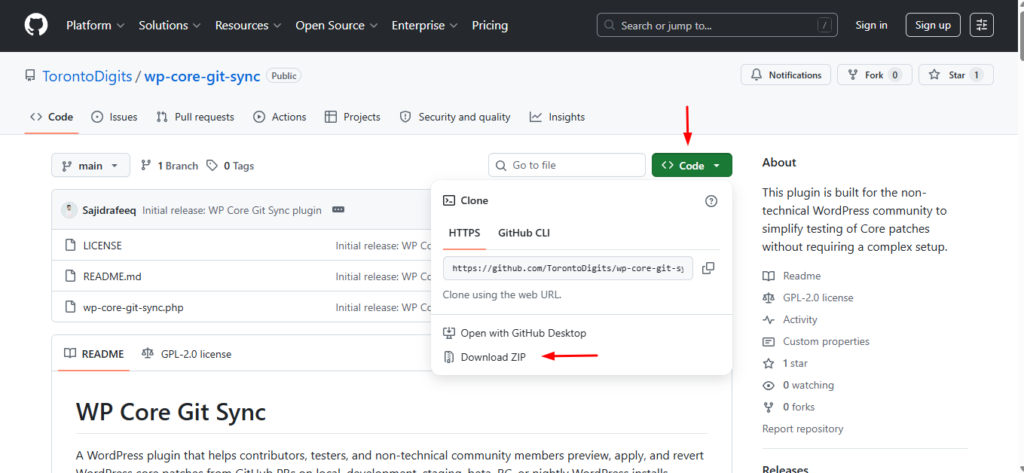
This will download the plugin file to your system.
Step 2: Initialize Git Tracking
- Navigate to:
Tools → WP Core Git Sync - Click Initialize Repository
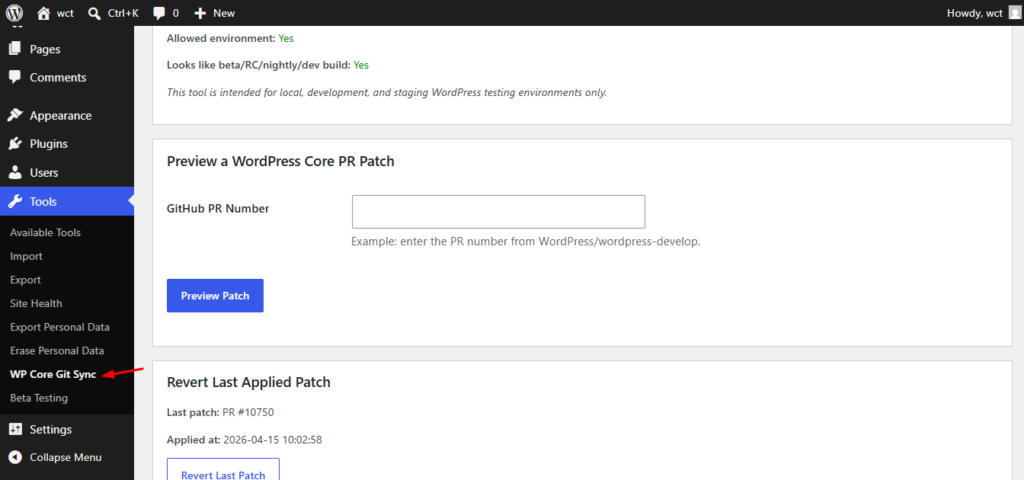
This step converts your WordPress installation into a Git-tracked environment, allowing patch application and version control.
Step 3: Upload the Plugin to Your Local WordPress Setup
You can install the plugin using two methods:
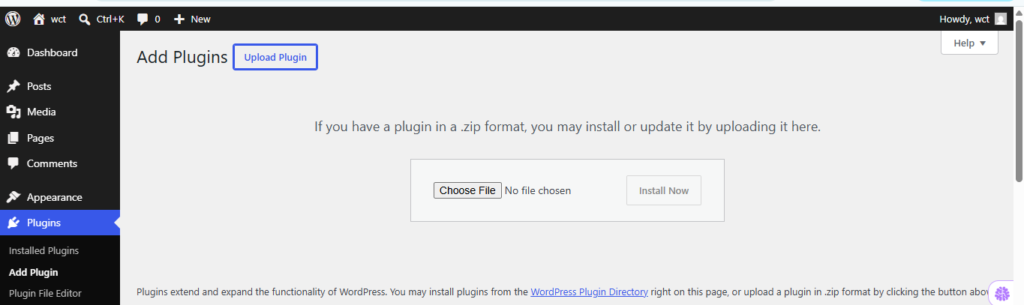
Option A: Upload via WordPress Admin
- Go to your WordPress Admin panel:
http://localhost/your-site/wp-admin - Navigate to:
Plugins → Add New → Upload Plugin - Click Choose File and select the downloaded ZIP file
- Click Install Now
- After installation, click Activate Plugin
Option B: Manual Installation
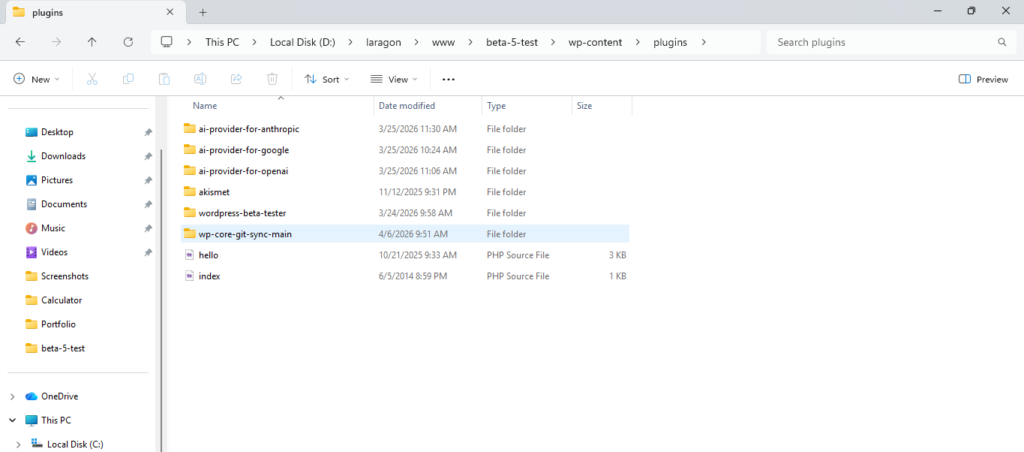
- Extract the ZIP file
- Copy the plugin folder into:
wp-content/plugins/ - Go to Plugins in WP Admin and activate it
Step 4: Apply a Patch Automatically from a GitHub PR
The plugin allows you to apply patches directly using a GitHub Pull Request (PR).
- Open the GitHub PR you want to test
Example:
github.com/WordPress/wordpress-develop/pull/11389 - Copy the PR number (e.g., 11389)
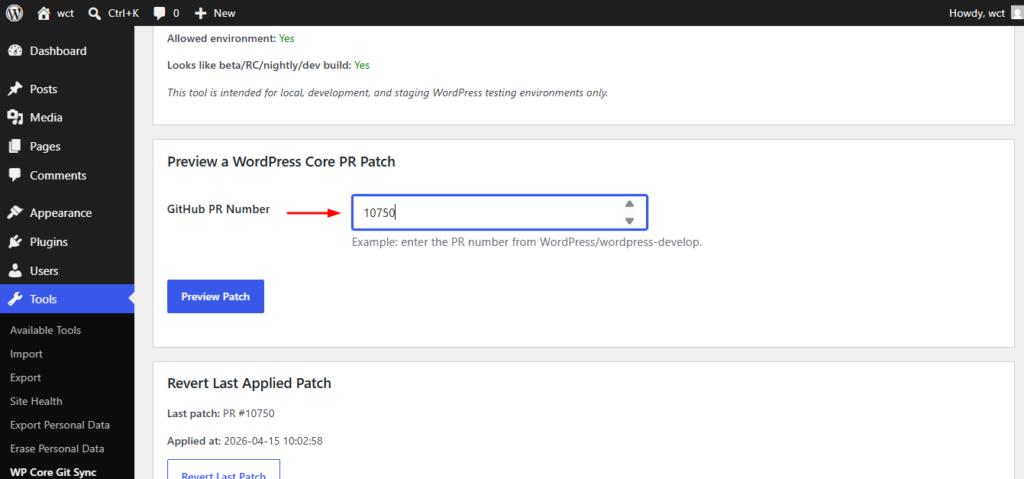
- In your WordPress Admin:
Go to Tools → WP Core Git Sync - Enter the PR number
- Click Preview Patch to review changes
- Click Apply Patch
The plugin will:
- Normalize file paths
- Skip unnecessary files (tests, tooling)
- Automatically back up core files
Step 5: Test and Verify the Patch
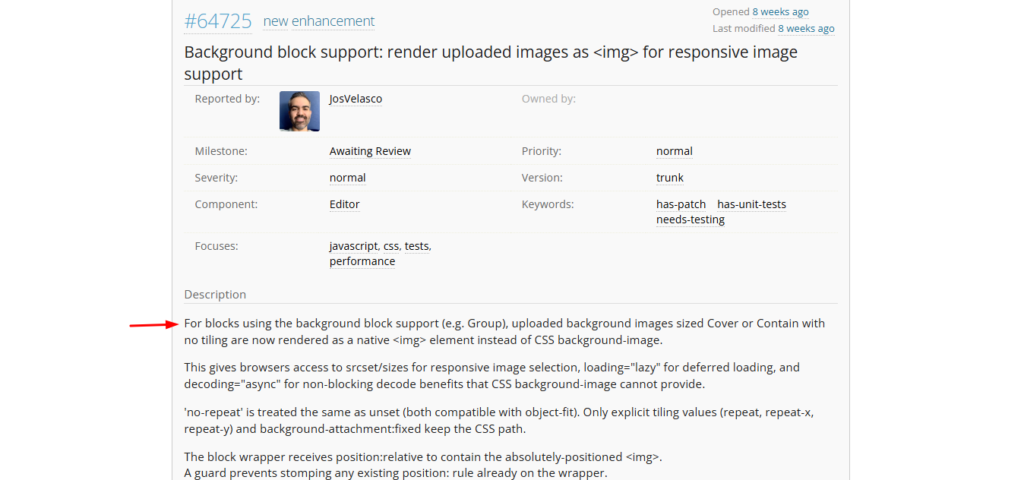
1. Reproduce the Original Issue
- Follow the steps from the Trac ticket or PR
- Confirm the issue exists before applying the patch
2. Verify the Fix
- Reload your site
- Repeat the same actions
- Confirm the issue is resolved
3. Check Browser Console
- Right-click → Inspect → Console
- Look for JavaScript errors or warnings
4. Test Responsiveness
Use browser developer tools to test:
- Mobile view
- Tablet view
- Desktop view
Check layout, UI behavior, and button functionality.
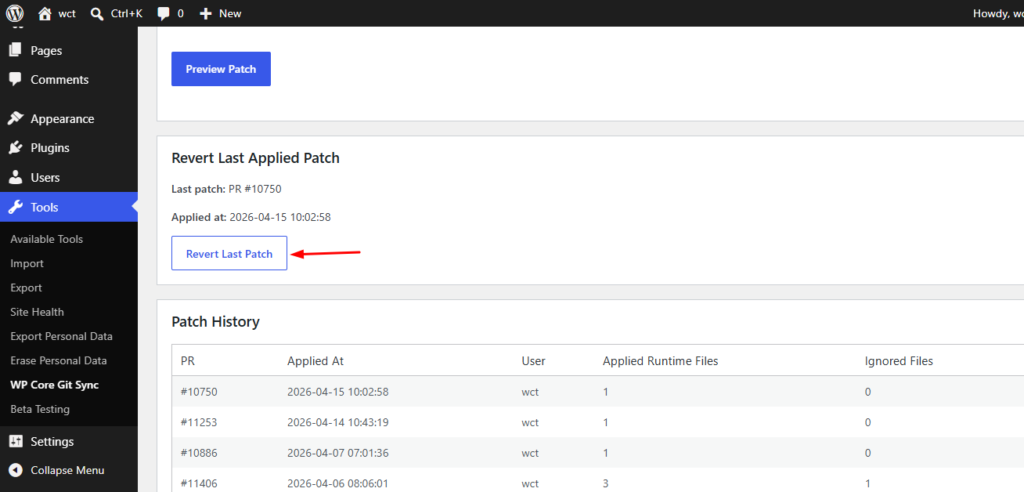
Step 6: Manage and Revert Patches
WP Core Git Sync provides built-in tools to manage changes:
- View Changes → See modified files
- Commit Changes → Save changes in Git
- Revert Last Patch → Restore original files
- Reset Repository → Return to a clean state
These features ensure safe testing and prevent accidental issues.
Recommended Workflow for Efficient Testing
- Select a ticket from Trac or GitHub
- Apply the patch using the plugin
- Reproduce the issue
- Verify the fix
- Check logs and debug output
- Reset your environment
- Move to the next ticket
Best Practices
- Always test on a fresh local installation
- Test both before and after applying a patch
- Avoid applying multiple patches at once
- Document your testing results clearly
- Use revert/reset features to maintain a clean environment
Conclusion
Using WP Core Git Sync, you can:
- Automatically apply and test patches
- Simplify the WordPress Core testing process
- Safely manage and revert changes
- Contribute to WordPress with confidence
- This workflow is ideal for developers, testers, and beginners looking for a structured and user-friendly way to contribute to WordPress Core.